Use the site's download button
Choose the original download when the website provides one and the file format works for you.
 Dolphin Tab Audio Recorder
Add to Chrome
Dolphin Tab Audio Recorder
Add to Chrome
How-to guide
If a website plays useful audio but has no download button, Dolphin gives you a simple Chrome extension workflow for saving allowed browser audio locally.
Local recording. No uploads.
Quick answer
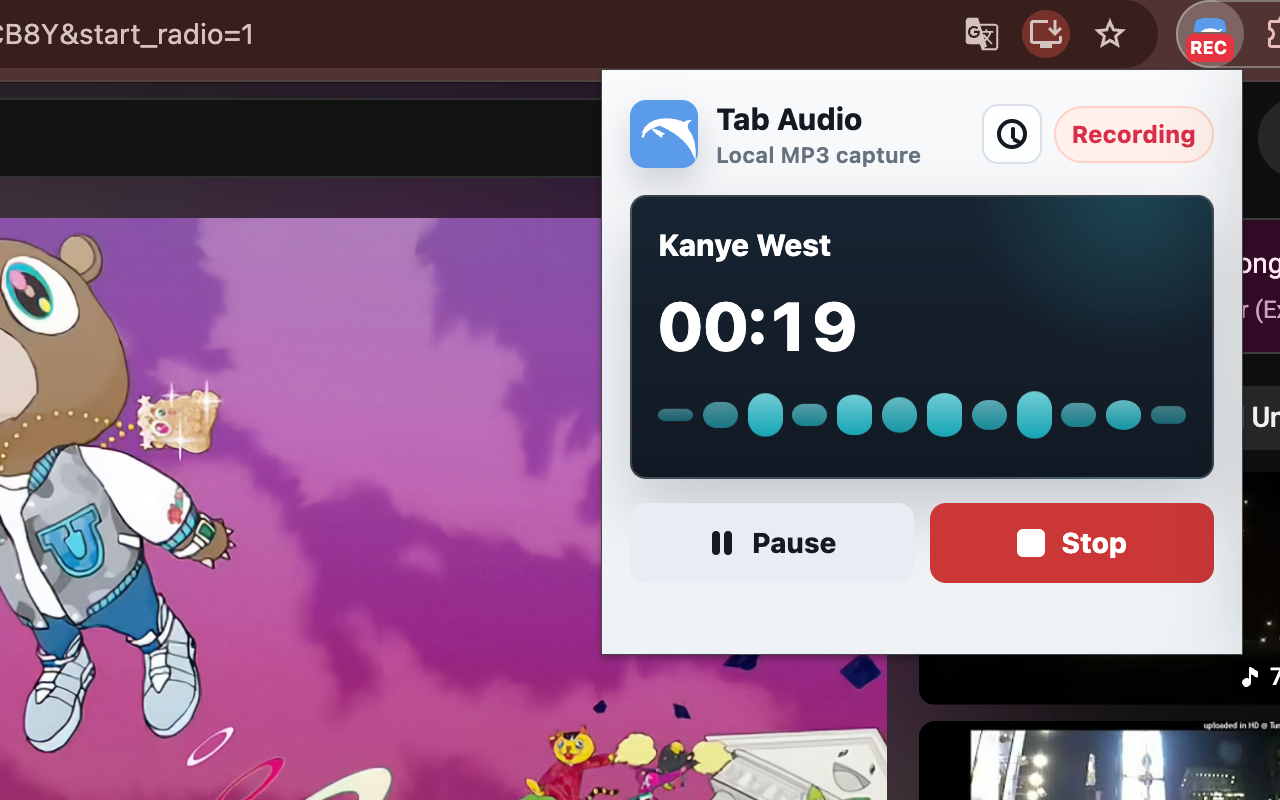
Open the exact Chrome tab that is playing the website audio, confirm both the tab and the web player are audible, then start Dolphin from that tab. Make a 10-second test first, stop, and preview the waveform before recording a full lecture, webinar, podcast, or live stream.
Dolphin records one active Chrome tab and saves the result as a local MP3. It does not record the screen, microphone, other tabs, or system-wide audio. A direct download from the publisher is still the best option when one is available.
Step-by-step
Add the extension to Chrome and pin it so the recorder is easy to open.
Play the course, webinar, podcast, radio stream, or web player audio you need to capture.
Dolphin captures audio from the active tab while you continue listening normally.
Stop when the useful part is done, or trim the segment with the waveform view.
Edit the filename and download the recording to your device through Chrome downloads.
Choose the right method
Choose the original download when the website provides one and the file format works for you.
Use Dolphin when audio plays in one browser tab, there is no useful download, and you only need an MP3.
Use a screen recorder when slides, captions, cursor movement, or other visual context must stay in the final file.
Use a desktop audio tool when the source spans several apps or browser tabs. Dolphin records one active Chrome tab.
Before recording
Make the website tab that plays the lecture, webinar, podcast, interview, or web player active.
Confirm that the site player is producing audible sound before starting a longer recording.
Verify the Chrome tab is not muted and the website player's own volume is turned up.
Keep the source stable while recording. Start a fresh capture if the page or media player reloads.
Common sources
Save allowed lecture audio and language-learning material for offline review.
Keep spoken reference material without creating a large video file.
Capture a useful segment from browser playback when you have permission to keep it.
Record website audio behavior for bug reports, product review, and reproducible examples.
Player behavior
Start each test from the lesson tab. If the course advances by reloading or opening a new page, stop and begin a fresh recording from the new source.
Join early, dismiss prompts, confirm playback is stable, and record a short sample before the important segment begins.
Use the publisher's download when available. Otherwise, record the permitted segment from the active player tab and trim it afterward.
Keep the page containing the audible player open. If a play button launches another tab, start Dolphin from the tab where the sound actually continues.
Long recordings
Let the player load, close overlays that may pause playback, connect power for a long session, and keep enough free storage for the finished MP3. Browser memory, device performance, and page behavior can affect very long recordings.
During capture, avoid refreshing, closing, replacing, or muting the source tab. If the player changes lessons or moves the audio to a new tab, stop and run another short test before continuing.
Troubleshoot silent or interrupted recordingsTest 10 seconds, verify the waveform, preview the sound, and choose a clear filename.
Keep the source tab open, audible, and stable while the website audio plays.
Preview the result, trim unwanted playback, and confirm the MP3 opens before closing the source.
Recording quality
Dolphin captures the audio produced by the active Chrome tab, so it avoids the room echo that comes from recording speakers with a microphone.
The website source still matters. Low volume, buffering, player reloads, and protected playback can affect the result. Run a short test before a long session.
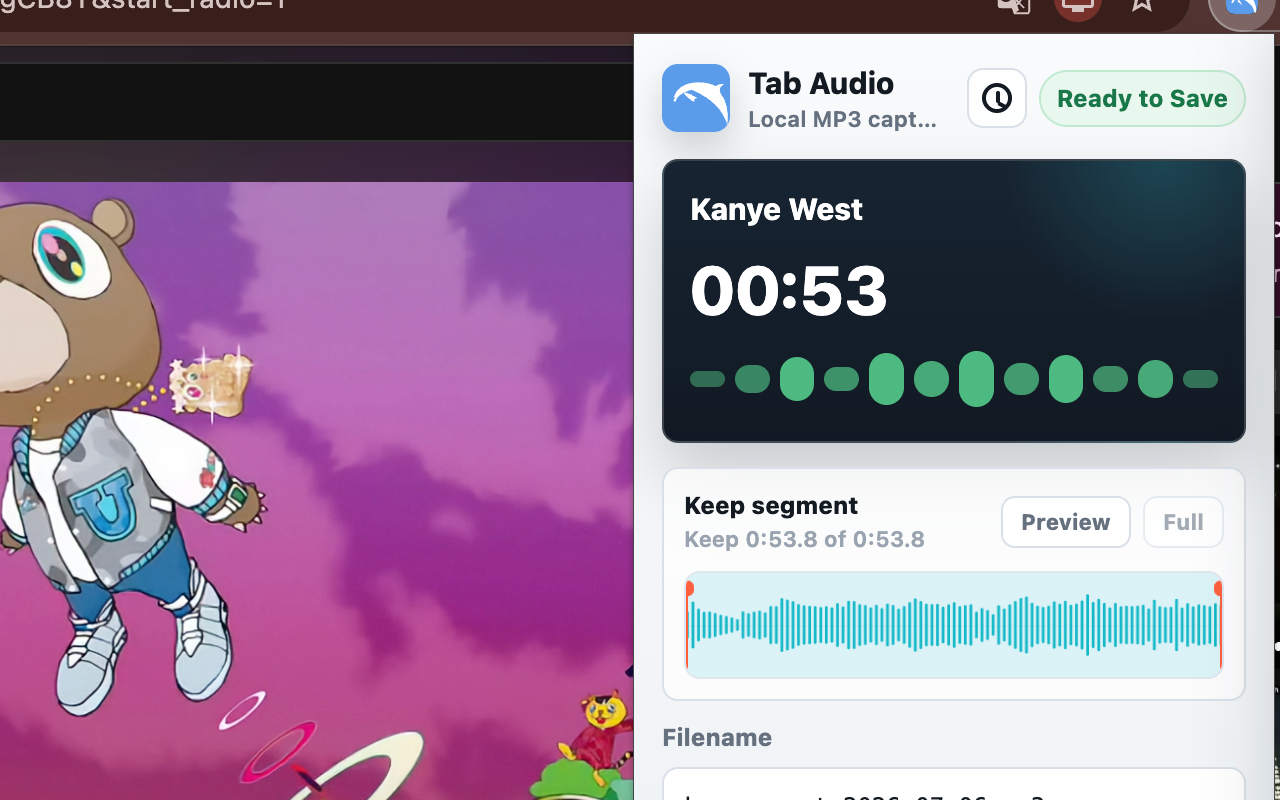
Use the audio shape to find where the useful website audio begins and ends.
Listen from the adjusted start point before saving the final file.
Download the trimmed result through Chrome without uploading the recording.
Troubleshooting
Start recording from the tab that is actually playing audio.
A muted Chrome tab or silent website player may create a silent recording.
Stop and start a fresh recording if the website replaces its player or reloads the source.
DRM-based or protected audio may not be available to browser tab capture.
Legal and privacy note
Dolphin is designed for recording audio you have the right to capture. Always respect copyright and the source website's terms.
Recordings are processed locally by the extension and downloaded to your device. Dolphin does not upload the recording audio.
Read how Dolphin handles local recordingsRelated guide
The Chrome tab guide compares tab audio with microphone, system audio, and screen recording, then walks through a reliable capture.
Read the Chrome tab audio guideRelated guide
Use the MP3 guide to understand waveform trimming, local export, and the current format limits.
Read the browser audio to MP3 guideRelated guide
See the tab audio recorder overview for features, shortcuts, privacy, and common use cases.
Explore the tab audio recorderReady to record Chrome tab audio?
FAQ
Install Dolphin, open the website tab with audio, start recording from the extension, stop when finished, and save the local MP3 file.
Dolphin works with many websites that play audible tab audio, but it cannot guarantee capture from every site. Protected or DRM-based content may not be recordable.
Check that the correct Chrome tab is active, both the tab and website player are unmuted, and the player did not reload or switch sources during recording.
No. Dolphin records audio from the active Chrome tab only. Use a screen recorder when the final file must include video or on-screen actions.
No. Dolphin is a Chrome extension workflow for active-tab audio, so you do not need desktop audio routing for supported browser audio.
The current release saves MP3. WAV export is not included yet.
No. Recording and MP3 encoding run locally in Chrome.
Yes. After recording, use the waveform editor to adjust the start and end before saving the local MP3.
Start a fresh recording from the tab where the sound is actually playing. Dolphin keeps recording the tab selected at the start rather than automatically following a player into another tab.
Let the player load, close prompts, keep the source tab audible and stable, check available storage, and make a 10-second test recording before the full session.