Included
Audible media produced by the active Chrome tab after recording starts.
 Dolphin Tab Audio Recorder
Add to Chrome
Dolphin Tab Audio Recorder
Add to Chrome
Record one active tab
Capture sound from one active Chrome tab, check the result, trim the useful part, and download a local MP3 without recording your screen or microphone.
Local recording. No uploads.
Quick answer
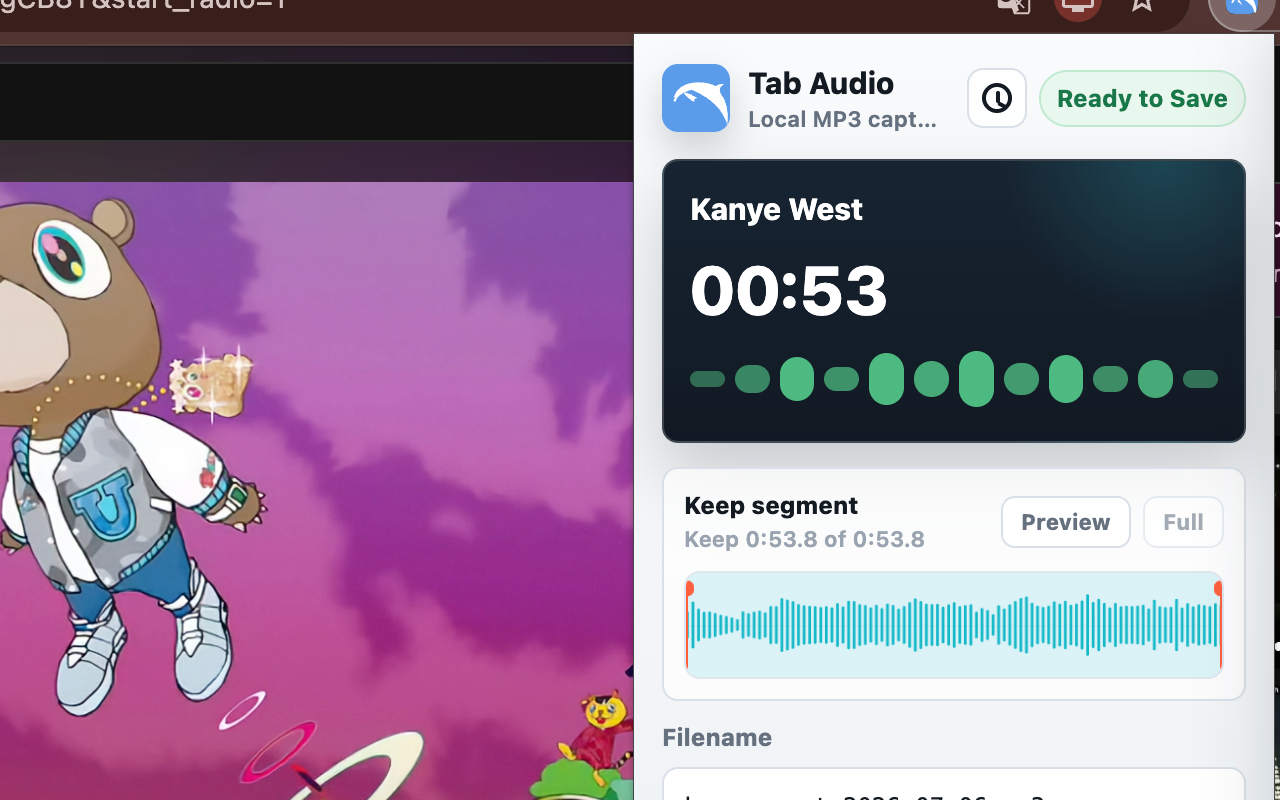
A Chrome tab audio recorder captures the sound produced by one browser tab. Open the tab, confirm that its player is audible, start Dolphin on that tab, stop when the useful audio ends, then trim and download the recording as MP3.
This is a focused alternative to screen recording when you need the sound but not the video, microphone, or audio from other desktop applications.
Definition
A tab audio recorder captures sound from a specific browser tab. It is different from a voice recorder, a system audio recorder, and a screen recorder.
Dolphin is made for the moment when you hear useful audio in Chrome and want a clean local file without setting up OBS, QuickTime, Audacity, or a virtual audio route.
Instead of recording your whole screen or desktop sound, Dolphin focuses on the active tab you choose and downloads the result as an MP3 file.
Workflow
Open the Chrome tab that contains the lecture, webinar, podcast, web player, or website audio you want to capture.
Play a short sample and check that the Chrome tab and website player are not muted. Dolphin can only capture audio Chrome exposes from that tab.
Click Dolphin from the Chrome toolbar and start recording the current tab.
Let the audio play normally. Avoid closing, replacing, or reloading the source tab during the recording.
When the useful audio ends, stop recording and confirm that the waveform contains sound before trimming.
Preview the kept segment, trim extra playback from both ends, and save the recording as a local MP3 file.
Capture boundary
Choosing the correct recorder starts with the audio source. Dolphin is intentionally limited to the active Chrome tab instead of mixing every sound on your computer.
Audible media produced by the active Chrome tab after recording starts.
Microphone input, room sound, other browser tabs, notifications, or desktop applications.
No video, cursor movement, page visuals, or display capture is added to the MP3.
Some DRM-protected players or streams may not expose audio to Chrome tab capture.
Best fit
Record tab audio from online lessons, language material, training videos, and course players when you have the right to keep a copy.
Save spoken browser audio without creating a large screen recording.
Capture useful reference audio from browser players and trim the important segment before downloading.
Record website audio behavior from one tab for bug reports, product review, or reproducible notes.
Features
Record audio from the tab you choose instead of capturing your whole desktop.
Control the recording when timing matters.
Keep the important part before downloading.
Use page title and date hints so recordings are easier to find.
Before recording
A ten-second test is faster than repeating a lecture or webinar. Confirm the source and output before the important part begins.
Start the extension while the tab playing the audio is active.
Confirm the Chrome tab and the website player are audible.
Stop, inspect the waveform, and preview the sample before a long capture.
Use a topic, source, or date so the downloaded MP3 is easy to identify.
Not a screen recorder
If you only need sound, a screen recorder adds extra work: capture video, export a large file, convert it, and clean up the result.
Dolphin keeps the workflow smaller. It records Chrome tab audio, lets you trim the useful part, and saves a local MP3.
Troubleshooting
Start recording from the tab that is actually playing audio.
A muted tab or silent website player can create a silent recording.
If the site reloads, replaces the player, or opens the media in a new tab, stop and start a fresh recording from the correct tab.
Some DRM-based or protected streams may not be available to browser tab capture.
Limits and rights
A browser recorder does not bypass website access controls, subscriptions, DRM, copyright, or consent requirements. Use Dolphin for your own material, permitted recordings, personal notes, or audio whose owner allows capture.
For live meetings or conversations, follow applicable consent rules. Do not redistribute a recording unless you have the necessary rights.
Keyboard control
Dolphin supports a Chrome extension shortcut so you can start and stop recording without opening the popup first.
On Mac and Windows, open Chrome extension shortcuts and assign the key combination that feels fastest for your workflow.
Open chrome://extensions/shortcuts, find Dolphin, then assign a shortcut for starting and stopping recording.
Privacy
Dolphin processes recordings locally and saves files through Chrome downloads. It does not upload recording audio, page titles, URLs, filenames, or local history.
Learn more about Dolphin privacyRelated guide
If your search started with a website player instead of the word tab, the workflow is the same: open the site in Chrome, start Dolphin on that active tab, then save the recording locally.
Read the website audio recording guideStep-by-step guide
The browser audio guide explains how to choose the right source tab, confirm that the sound is audible, avoid silent recordings, and save the useful part as MP3.
Learn how to record Chrome tab audioInternal audio guide
Internal audio in Chrome usually means sound generated inside the active browser tab rather than microphone or room audio.
Read the Chrome internal audio guideReady to record Chrome tab audio?
FAQ
Open the Chrome tab with audio, confirm the tab and website player are audible, start Dolphin from the toolbar, keep the source tab stable, stop when finished, trim the useful segment, and download the MP3 file.
Yes. Dolphin is designed to capture the active Chrome tab after you start recording.
Dolphin currently saves recordings as MP3 files. WAV export is not included in the current release.
No. Recordings are processed locally in Chrome and downloaded to your device.
No. Dolphin does not record your screen or create video files. It focuses on audio from the active Chrome tab.
If the Chrome tab or website player is muted, the recording may be silent. Unmute both controls and make a short test recording before a long session.
Dolphin is designed for practical browser audio sessions, but very long recordings depend on Chrome, memory, and device performance.
No. Dolphin records the active tab audio only. It is not a microphone or full system audio recorder.
Yes, when the website audio is playing in the active Chrome tab and is not protected in a way that blocks browser tab capture.
Reloading, closing, replacing, or moving the media to another tab can interrupt the original capture source. Start a fresh recording from the tab that now contains the audio.