Chrome tab audio
Choose Dolphin when the sound is playing in one Chrome tab and you want an audio-only MP3.
 Dolphin Tab Audio Recorder
Add to Chrome
Dolphin Tab Audio Recorder
Add to Chrome
Chrome tab audio without screen recording
If you want to record a Chrome tab with audio but only need the sound, Dolphin captures the active tab and saves a local MP3 without screen or microphone recording.
Local recording. No uploads.
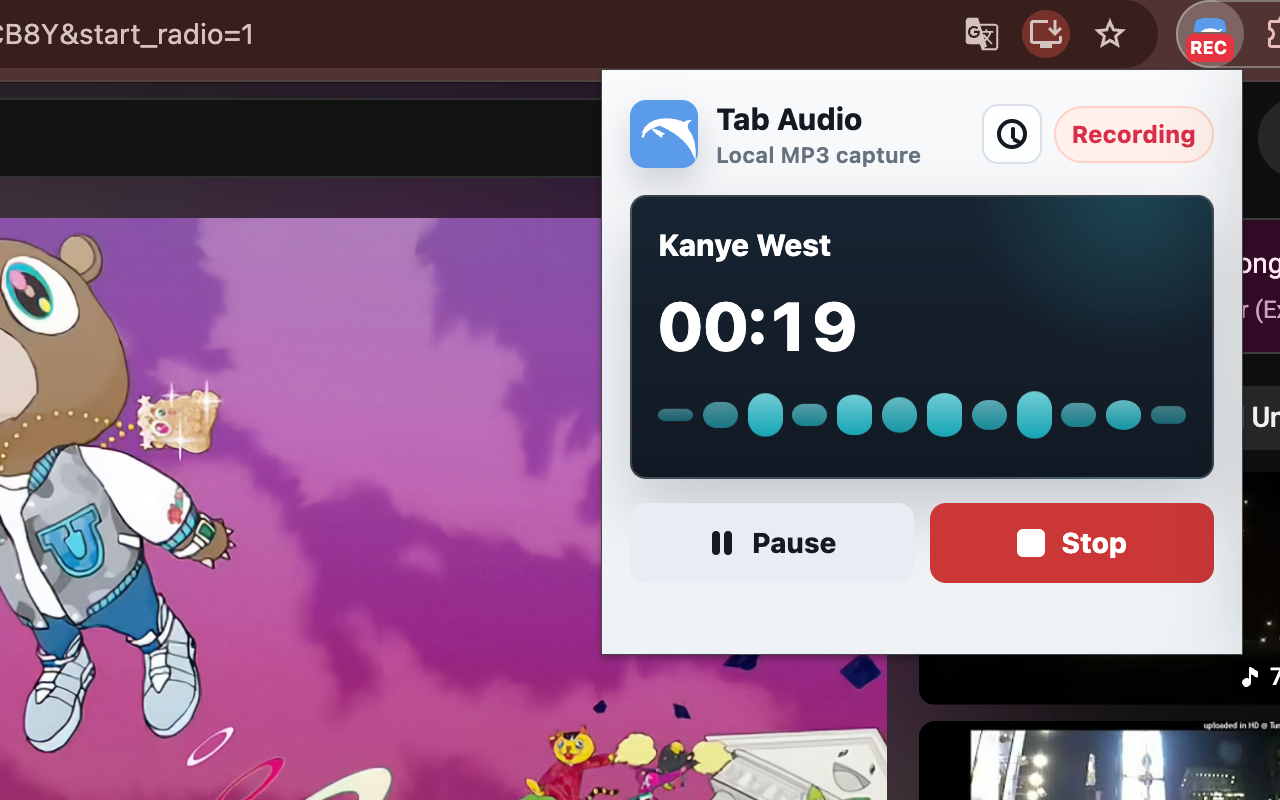
Quick answer
Open the Chrome tab that is playing the sound, start Dolphin from that same tab, and make a 10-second test recording. Stop, preview the result, then restart for the full recording if the audio is clear.
When the useful part is finished, stop, trim the beginning and end, and download the MP3. Dolphin captures one tab's audio only; it does not record your screen, microphone, or full system audio. Protected or DRM-based players may block capture.
Step-by-step
Play the website, course, webinar, podcast, or web player in a Chrome tab.
Click the extension while the audio tab is active so Dolphin captures the right source.
Stop and preview a short sample before a long session so you can catch a muted tab, silent player, or blocked source early.
Keep the tab audible and avoid muting or reloading the source while the recording is running.
Stop when the useful part is done and trim silence or extra audio with the waveform editor.
Save the final recording locally through Chrome downloads.
Choose the right mode
Choose Dolphin when the sound is playing in one Chrome tab and you want an audio-only MP3.
Use a screen recorder when the video, cursor, or on-screen steps must be part of the final file. Dolphin does not record video.
Use a voice recorder when you need narration, room sound, or a conversation. Dolphin does not capture microphone input.
Use a desktop audio tool when sound from several apps must be mixed together. Dolphin records one active browser tab.
Before recording
Click the exact tab that is playing the course, webinar, podcast, interview, or web player before starting Dolphin.
Make sure the player has started and the tab is producing audible sound before you begin recording.
Verify both Chrome's tab mute state and the website player's own volume control.
Do not reload the page or switch the source player during capture. Start a fresh recording if the source changes.
Best fit
Capture spoken lessons and review clips from browser-based course players.
Save reference audio without recording your screen or desktop.
Record useful segments from browser players when you have permission to keep a copy.
Record audio behavior from a website tab for bug reports and documentation.
Compared with desktop recording
Traditional audio recording tools often need a virtual audio cable, system audio routing, or a separate editor. That can be overkill when the sound is already playing in one Chrome tab.
Dolphin keeps the capture focused on the browser tab and saves the result as a local MP3.
Recording quality
Browser tab capture uses the audio produced by the active tab, so it avoids room echo from recording speakers with a microphone. The source still matters: low-volume, interrupted, or protected playback can affect the result.
Let the source play normally while Dolphin records. When you stop, use the waveform editor to remove extra silence at the beginning or end before saving the MP3.
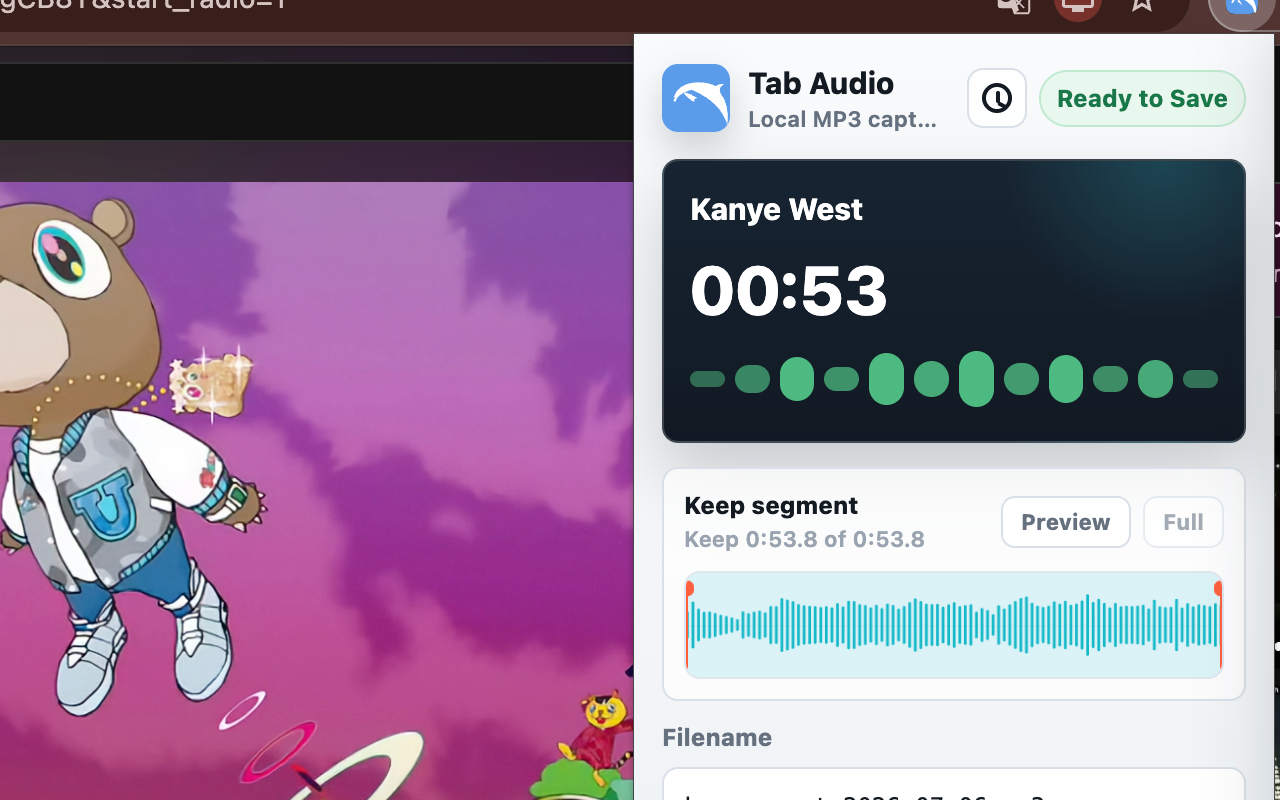
Use the waveform shape to locate the start and end of the segment you need.
Listen from the adjusted start point before downloading the final file.
Encode and save the result on your device without uploading the recording.
Limits
Dolphin records audio you have the right to capture from supported Chrome tabs. Some protected or DRM-based streams may block browser tab capture.
If the site reloads, changes players, or mutes the tab, stop and start a fresh recording from the active source.
Troubleshooting
Return to the source tab and confirm the website player is producing sound. Check both the player volume and Chrome's tab mute state, then start a new 10-second test from that active tab.
If the test is still silent, the player may use protected media or a capture method Chrome does not expose. Do not continue a long recording until the short preview contains audio.
Open the Dolphin troubleshooting checklistRelated guide
The website audio guide covers choosing between a direct download, active-tab recording, screen recording, and full system audio.
Read the website audio recording guideRelated guide
If your main goal is a small local file for listening or notes, use the MP3 guide after learning the basic browser audio workflow.
Read the browser audio to MP3 guideRelated guide
Compare the active-tab workflow with microphone, system audio, and screen recording before installing.
Explore the Chrome tab audio recorderRelated guide
Internal audio usually means sound generated inside the browser rather than sound captured from a microphone.
Read the Chrome internal audio guideReady to record Chrome tab audio?
FAQ
If you only need the sound, open the Chrome tab that plays the audio, start Dolphin from the toolbar, keep the tab audible, stop when finished, trim the recording, and download the MP3. Dolphin does not record screen video.
No. Dolphin records audio from the active Chrome tab only. Use a screen recorder if the final file must include video or on-screen actions.
No. Dolphin focuses on the active Chrome tab after you start recording.
No. Dolphin records audio from the active browser tab. It does not capture full system audio or microphone input.
Some protected or DRM-based audio may not be available to browser tab capture.
Dolphin saves the finished MP3 locally through Chrome downloads.
Yes. Make a 10-second recording and preview it first. A short test can reveal a muted tab, silent player, wrong source tab, or protected stream before you spend time on a full recording.
The source tab may have been muted, the website player may not have started, the wrong tab may have been active, or the stream may block browser capture. Check the player and tab volume, then start a fresh 10-second test.