Chrome tab audio
Use Dolphin when the sound is playing inside one Chrome tab and you want an audio-only MP3.
 Dolphin Tab Audio Recorder
Add to Chrome
Dolphin Tab Audio Recorder
Add to Chrome
Chrome internal audio
When internal audio means sound playing inside one Chrome tab, Dolphin captures that tab directly without recording your microphone, room, or screen.
Local recording. No uploads.
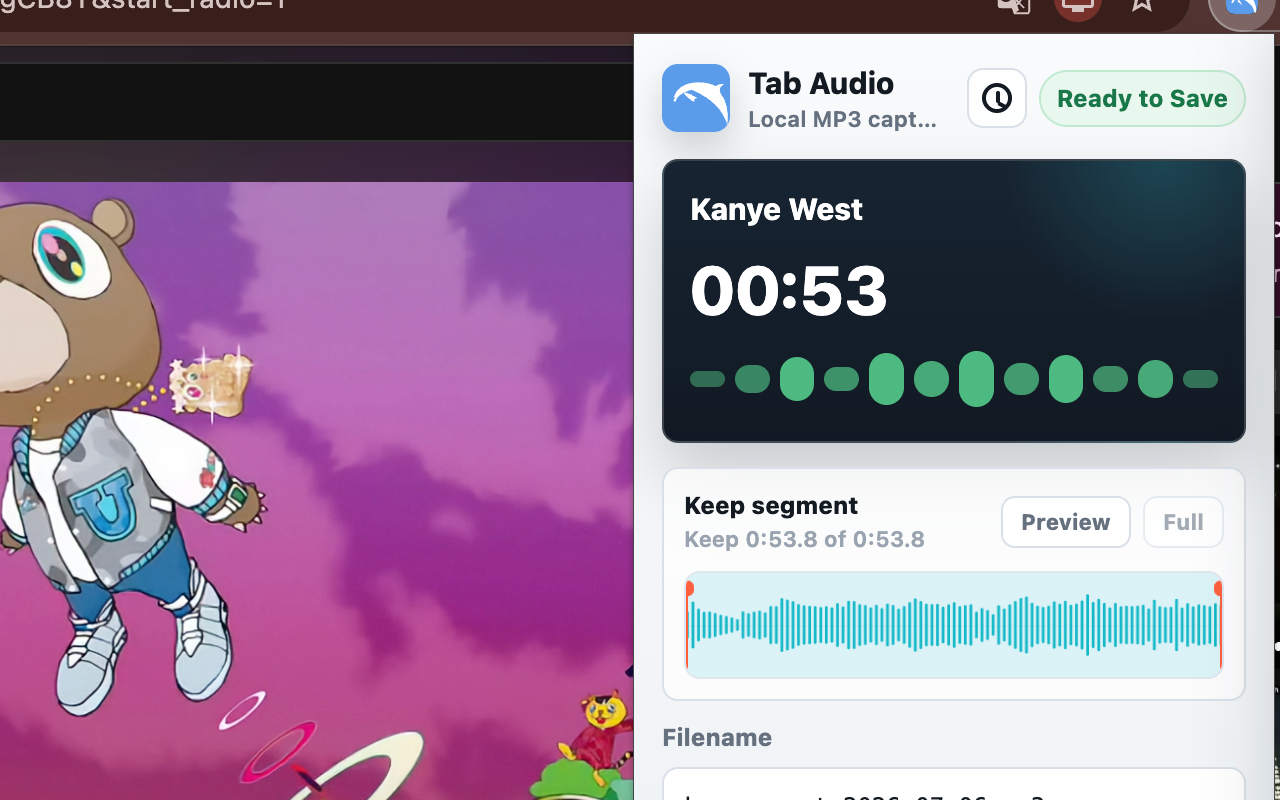
Meaning
Internal audio usually means sound generated by an app or website, not sound from your microphone. In Chrome, the practical version is audio playing inside a tab.
Dolphin is designed for that focused case: record one active Chrome tab, trim the useful segment, and download it as an MP3. It does not capture every app or every browser tab at once.
Quick answer
Open the Chrome tab that is producing sound, play a few seconds to confirm it is audible, start Dolphin from that same tab, stop when the useful audio ends, then trim and save the local MP3.
Make a 10-second test before a long lecture, webinar, or stream. Play the downloaded test file before the full session so you can catch a muted tab, the wrong source, or an unsupported player early.
Choose the right source
Use Dolphin when the sound is playing inside one Chrome tab and you want an audio-only MP3.
Use a voice recorder for narration, calls, instruments, or room sound. Dolphin does not capture microphone input.
Use a desktop recorder when sound from several apps or tabs must be mixed. Dolphin captures one active tab.
Use a screen recorder when visuals, cursor movement, captions, or slides must remain in the final file.
Steps
Use the Chrome tab with the course, webinar, podcast, interview, or web player.
Play the sound first so you know Chrome is sending audible tab audio.
Click Dolphin while that tab is active and start the current-tab recording.
Stop when the internal tab audio you need has finished.
Use the waveform editor to keep the important segment and download the file.
Before recording
Make the course, webinar, podcast, interview, or web player tab active before starting Dolphin.
Confirm that Chrome is producing audible sound before committing to a longer recording.
Verify the Chrome tab is not muted and the website player's own volume is turned up.
Avoid reloading the page or switching players during capture. Start again if the source changes.
Source boundary
Dolphin keeps recording the Chrome tab selected when capture starts. If a website opens its player in a new tab, pause and start a fresh recording from the tab where the sound is now playing.
Audio from desktop apps, browser notifications, another Chrome tab, and your microphone is outside that recording. Use a desktop system-audio recorder only when several sources must be combined.
Not microphone audio
Some tutorials record computer audio by playing sound through speakers and capturing it with a microphone. That can add room noise, echo, and lower quality.
Dolphin records tab audio directly through Chrome's browser capture flow. It does not capture your microphone or room sound.
Recording quality
Direct tab capture avoids the room echo and background noise that can happen when a microphone records computer speakers. The original website volume and playback stability still affect the result.
After recording, use Dolphin's waveform editor to remove extra silence or playback before downloading the local MP3.
Find where the useful internal audio begins and ends.
Listen from the adjusted start point before saving.
Download the trimmed result through Chrome without uploading the recording.
Common mistakes
Start Dolphin from the tab that is actually playing the sound.
If the tab is muted, the recording may be silent.
If the web player reloads or changes source, start a new recording.
Protected or DRM-based content may block browser tab capture.
Troubleshooting order
Confirm the website player is producing sound and its own volume control is not at zero.
Right-click the tab if needed and make sure the site or tab is allowed to play sound.
If playback moved or opened elsewhere, stop and begin a new recording from the actual source tab.
If another page records correctly, the original source may use a protected or unsupported playback path.
Save and play a 10-second MP3 before repeating the full recording.
Limits and rights
Some protected or DRM-based streams may block browser tab capture. Dolphin cannot guarantee recording from every website or media player.
Only record audio you have the right to capture, and follow the source website's terms. Dolphin processes the recording locally and does not upload the audio.
Read the local recording privacy detailsRelated guide
If the phrase internal audio is not important and you simply need to record sound from a browser tab, the browser audio guide covers the general workflow.
Read the browser audio recorder guideRelated guide
The tab audio recorder guide covers current-tab capture, shortcuts, local processing, and common use cases.
Explore the tab audio recorderRelated guide
The MP3 guide explains waveform trimming, local download, and the current export format limits.
Read the browser audio to MP3 guideReady to record Chrome tab audio?
FAQ
With a tab audio recorder like Dolphin, you can record audio playing from the active Chrome tab and save it locally.
No. Dolphin records the active Chrome tab audio only and does not capture your microphone.
Not exactly. Dolphin is not a full system audio recorder. It captures audio from the active browser tab.
Yes. Dolphin saves current-tab recordings as local MP3 files.
The tab may have been muted, the wrong tab may have been active, or the source may be protected or reloaded during recording.
No. Dolphin records audio from the active Chrome tab after you start recording. It is not a full system audio mixer.
Start a new recording from the tab where the audio is actually playing. Dolphin continues with the tab selected when the recording began.
Yes. Record, save, and play a 10-second sample first so you can confirm the source, tab mute state, and MP3 output.
No. Dolphin records tab audio only and does not create a screen recording or video file.
No. Dolphin records and encodes the audio locally in Chrome, then saves the MP3 to your device.